How Limit Works
Understand Limit before getting started
1. Set up your Limits
Choose what to block
Block categories like social media, porn, and gambling, or specific apps and websites, from the Limit dashboard.
Choose when limits apply
Use schedules and places. Allow temporary breaks, with blocking automatically resuming afterwards.
Protect your settings
Require a delay or approval from a sponsor you trust before making changes.
You can set up your limits and see how Limit works before installing anything on your phone.
2. How the Limit app works
The Limit app runs on your Android phone and enforces the limits you’ve configured on the Limit dashboard.
What it does
- Blocks restricted apps directly in Android.
- Blocks restricted websites across all browsers.
- Protects relevant phone settings so your limits can’t simply be disabled or bypassed.
- Requires your configured delay or approval before uninstalling.
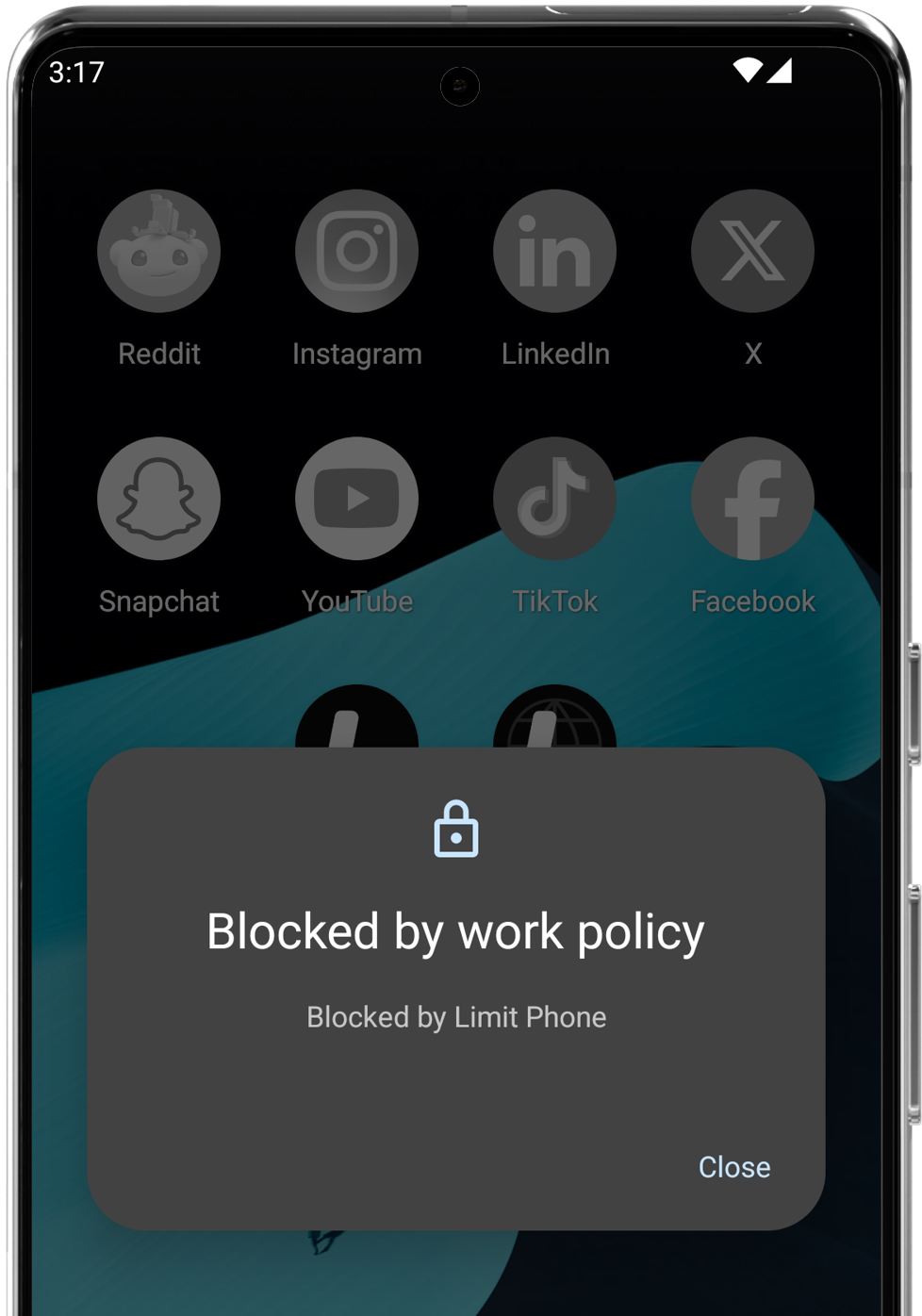
How app blocking works
Limit uses an Android feature called Device Owner. This gives it the system-level permissions needed to block apps and protect against tampering.
It’s the same system companies use to manage employees' phones. You still own your phone: these permissions let Limit enforce the restrictions you’ve chosen.
How website blocking works
Limit installs a certificate and runs a local HTTP proxy directly on your device, filtering website traffic across all browsers.
The proxy allows Limit to:
- Block pages you’ve restricted in your Limit settings.
- Show the Limit block screen when you try to open a restricted page, instead of a browser connection error.
- Check the full URL, so you can allow a specific YouTube video while keeping the rest of YouTube blocked.
Your privacy
Device Owner permissions do not give Limit access to the contents of other apps, such as your emails, messages, or banking information.
The website filtering described above happens locally on your phone. The browsing data Limit inspects is used only to enforce your limits and is not sent off your device.
3. Installing the Limit app
Limit’s stronger protection requires a different setup from a typical app. Our web installer guides you through it.
What you’ll need
- Your Android phone.
- A computer with a supported browser, such as Chrome or Edge.
- A USB cable that supports data transfer.
What to expect
- Back up your phone before starting.
- Connect your phone to your computer and temporarily allow the installer to communicate with it.
- Follow the guided setup, including temporarily removing accounts so Android can grant Limit its permissions.
- Sign back into your accounts after setup.
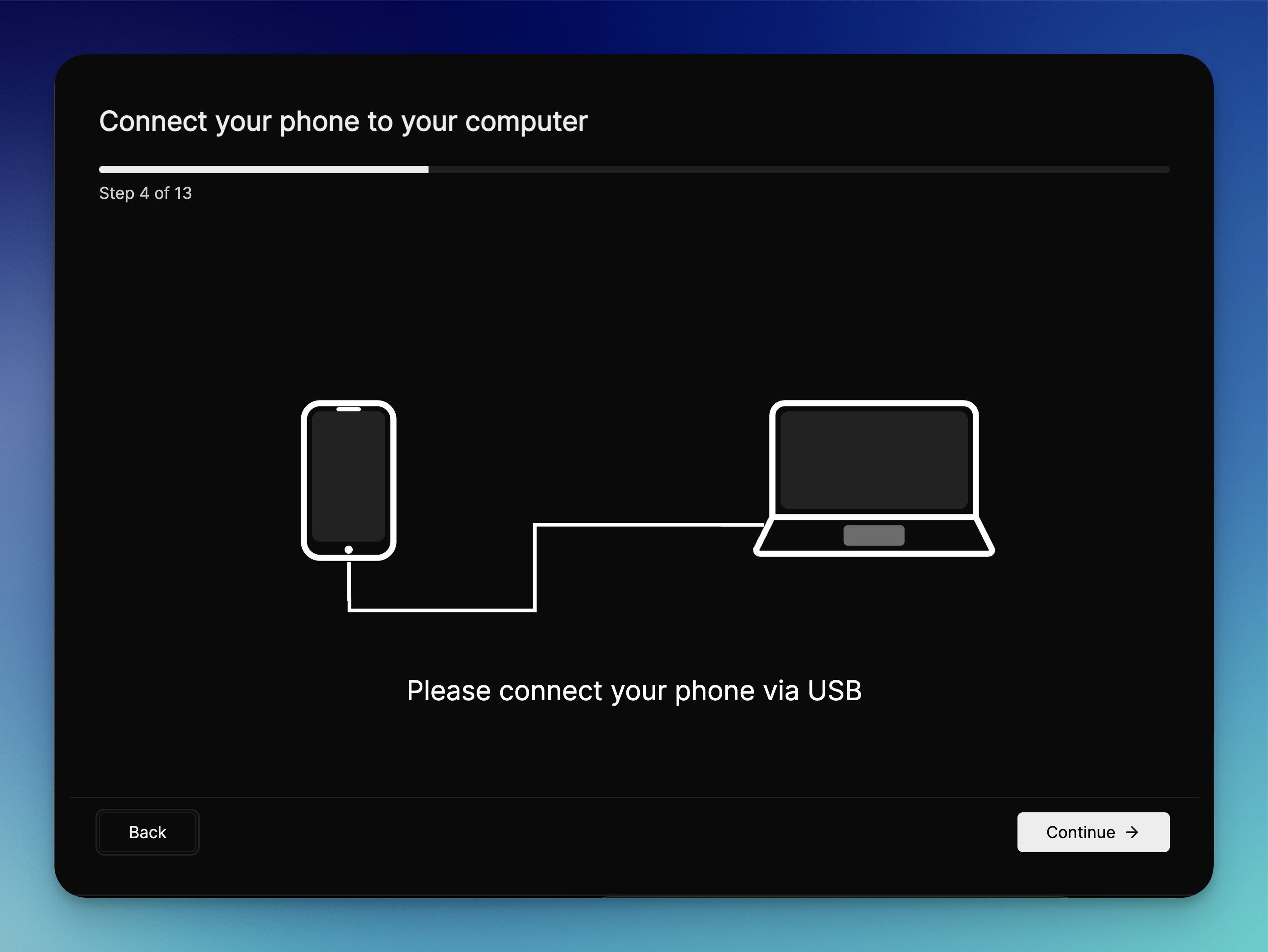
These extra steps give Limit the permissions it needs for blocking that you can’t easily override.
Have questions? Check our FAQ or contact us.