Firefox for Android needs an extra setting to trust Limit's certificate and show block pages for blocked HTTPS websites.
Limit installs its own certificate authority (CA) certificate on your phone.
Enable third-party CA certificates in Firefox
-
Open Firefox, tap the three-dot menu, and open Settings.
-
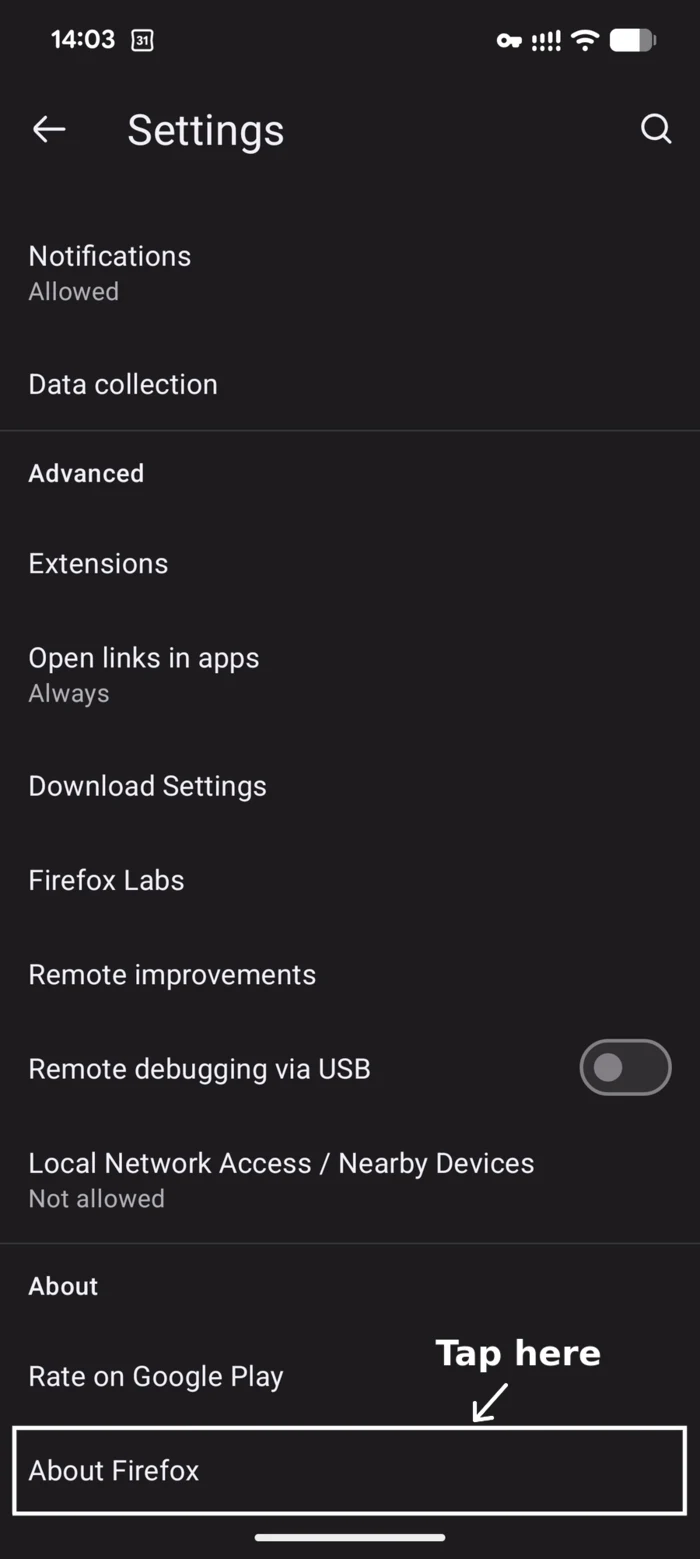
Scroll down and tap About Firefox.
-
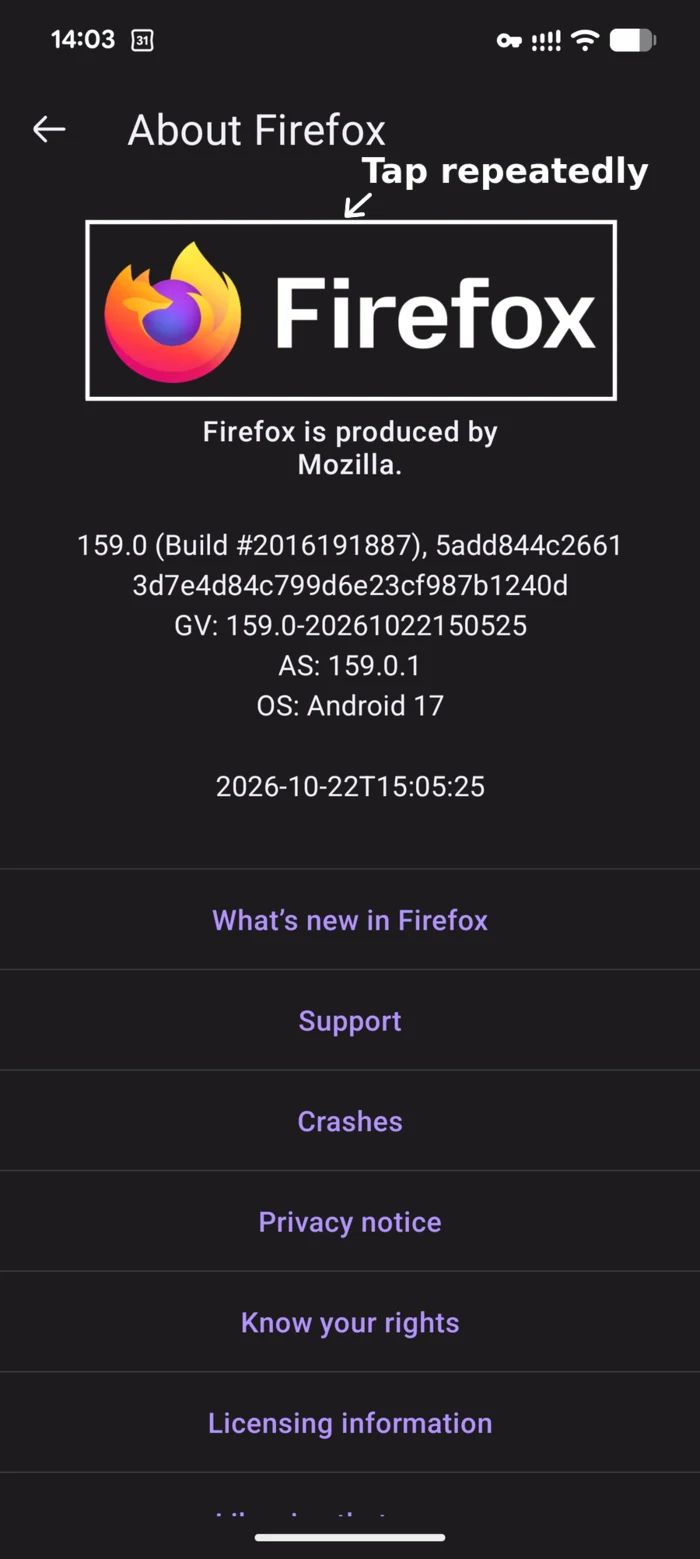
Tap the Firefox logo repeatedly (usually five times) until a message confirms that the debug menu is enabled.
-
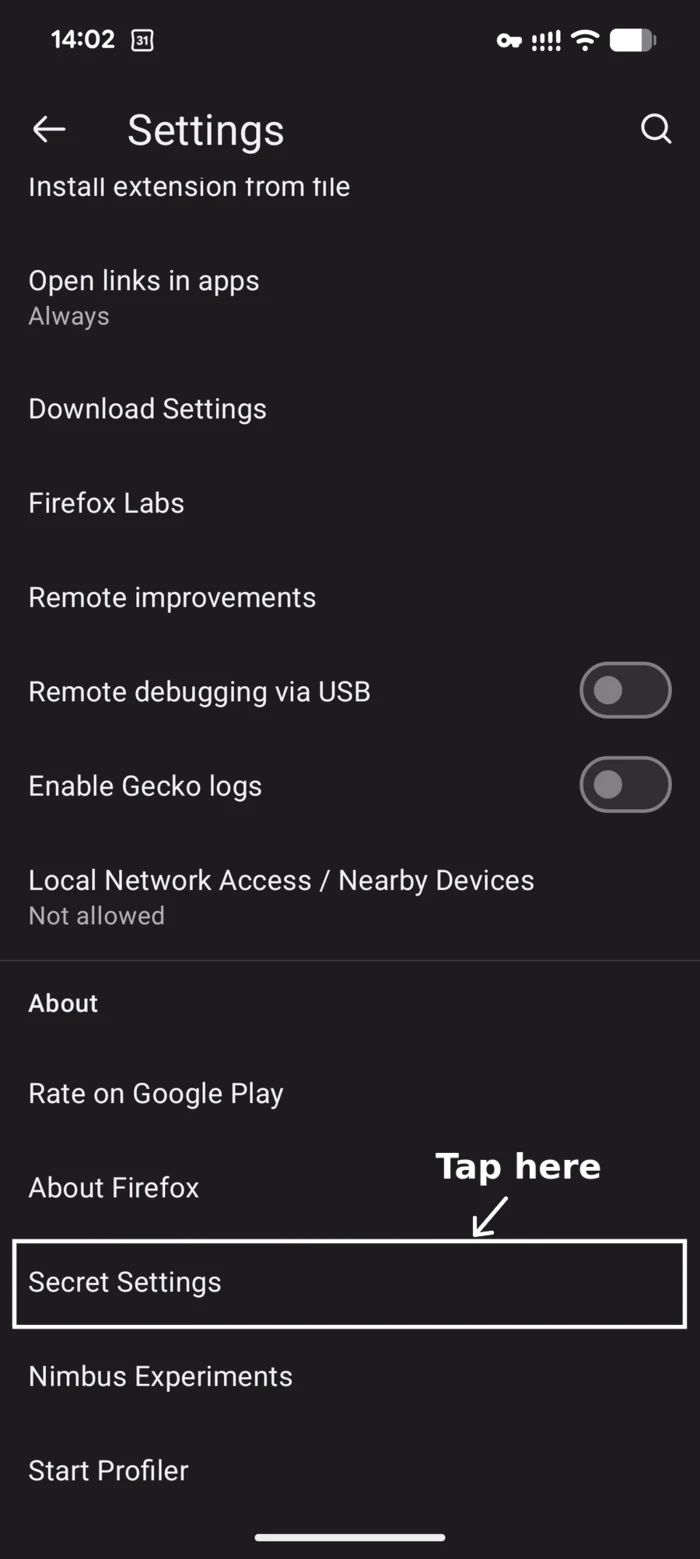
Go back to Settings, then tap Secret Settings.
-
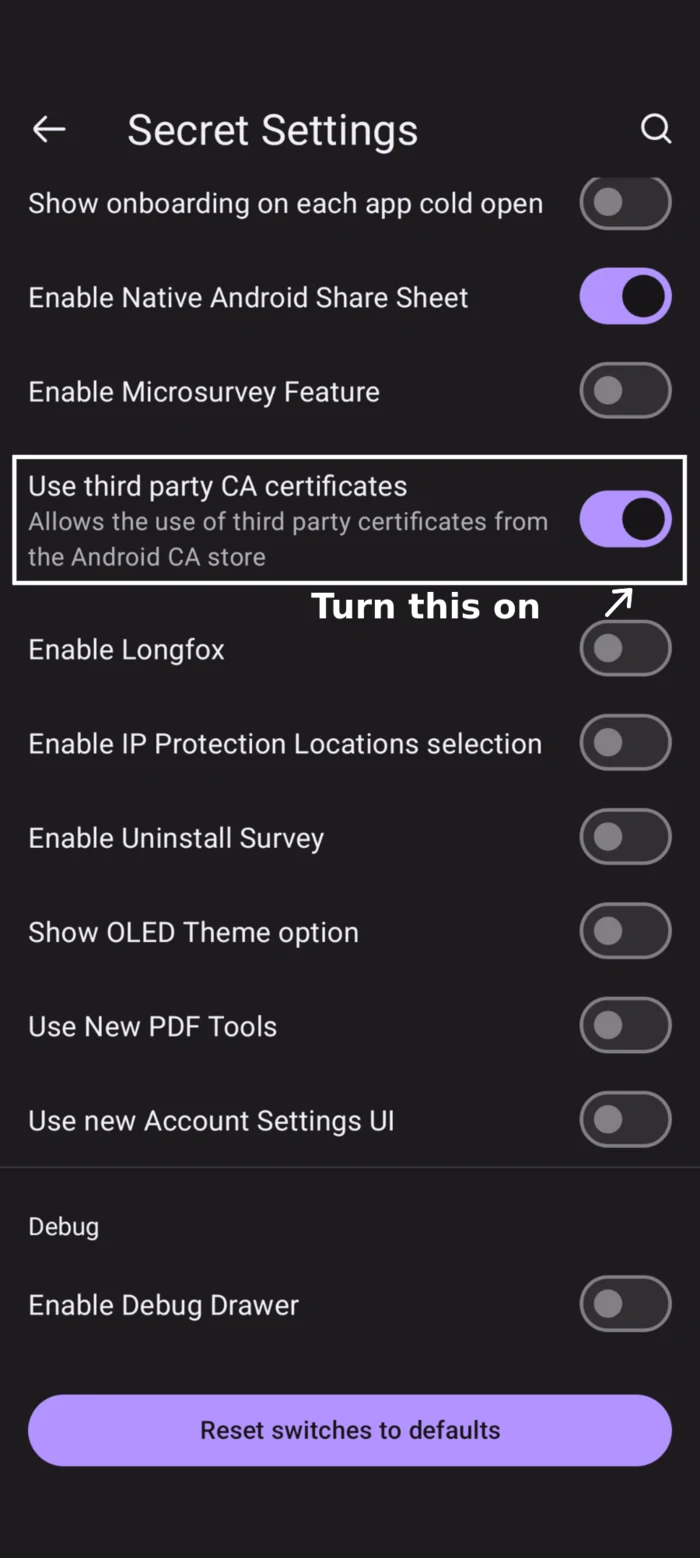
Turn on Use third party CA certificates, as shown.
-
Try opening a website that Limit blocks. Firefox should now show Limit's block page instead of a certificate or secure-connection error.
If the error persists, force-stop Firefox: open your phone's Settings > Apps > Firefox > Force stop, then reopen Firefox and try again. The exact Android menu names may vary by phone.